Edit Content
Digital Marketing Agency
- 23 Harrisway , Markham , ON L3T 5A6
- info@raadwindeal.com , sales@raadwindeal.com
- (647) 612-1367
Table of Contents
ToggleIf you're hiring an agency, a freelancer, or bringing a new team member on board, you need to share your ad account without giving away your personal password. This is exactly why Google Ads has a secure access system!
This step-by-step guide will show you exactly how to grant Google Ads access to ensure they have the permissions they need without risking your account security.
You must have Admin access to your account to invite new users or change existing permissions.
The first step is a secure google ads login.
Read More: Lead Generation Ads
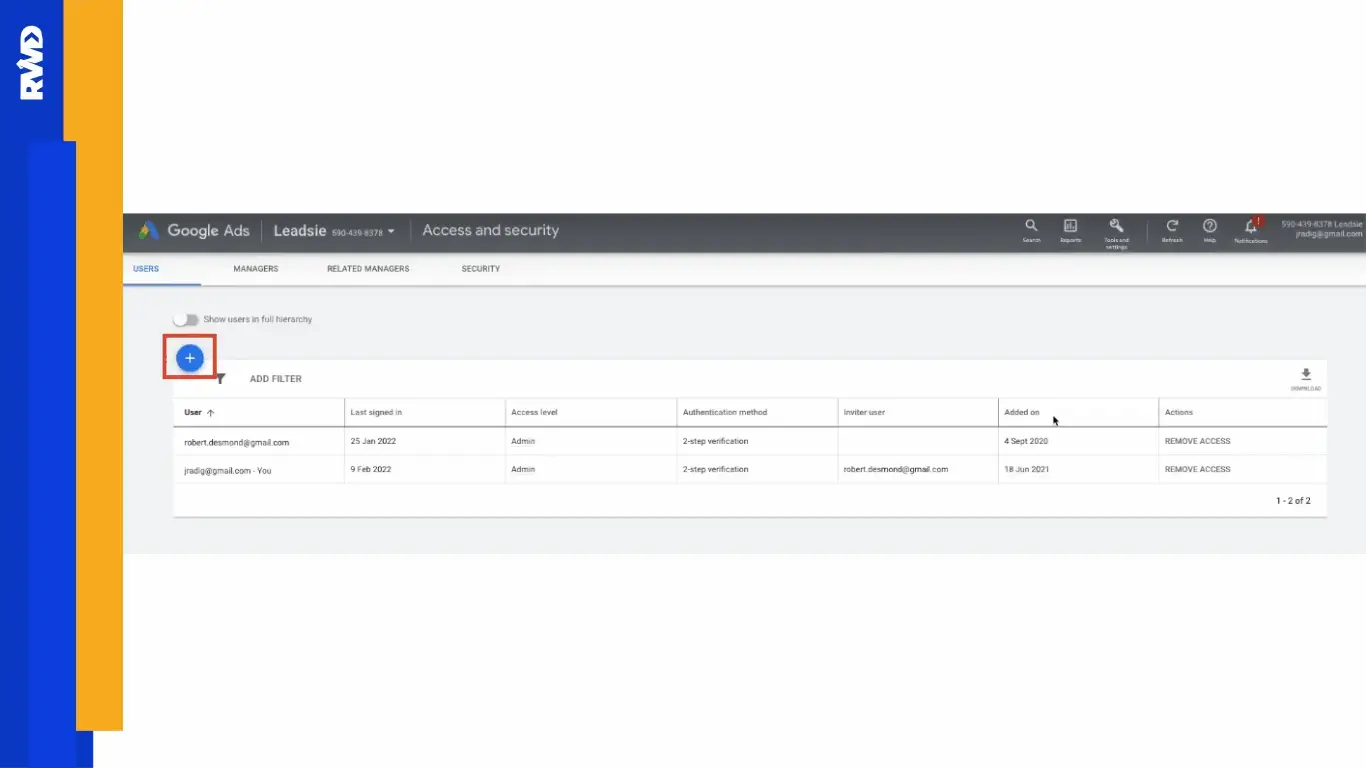
You'll now be on the Access and security page where you can manage all users.
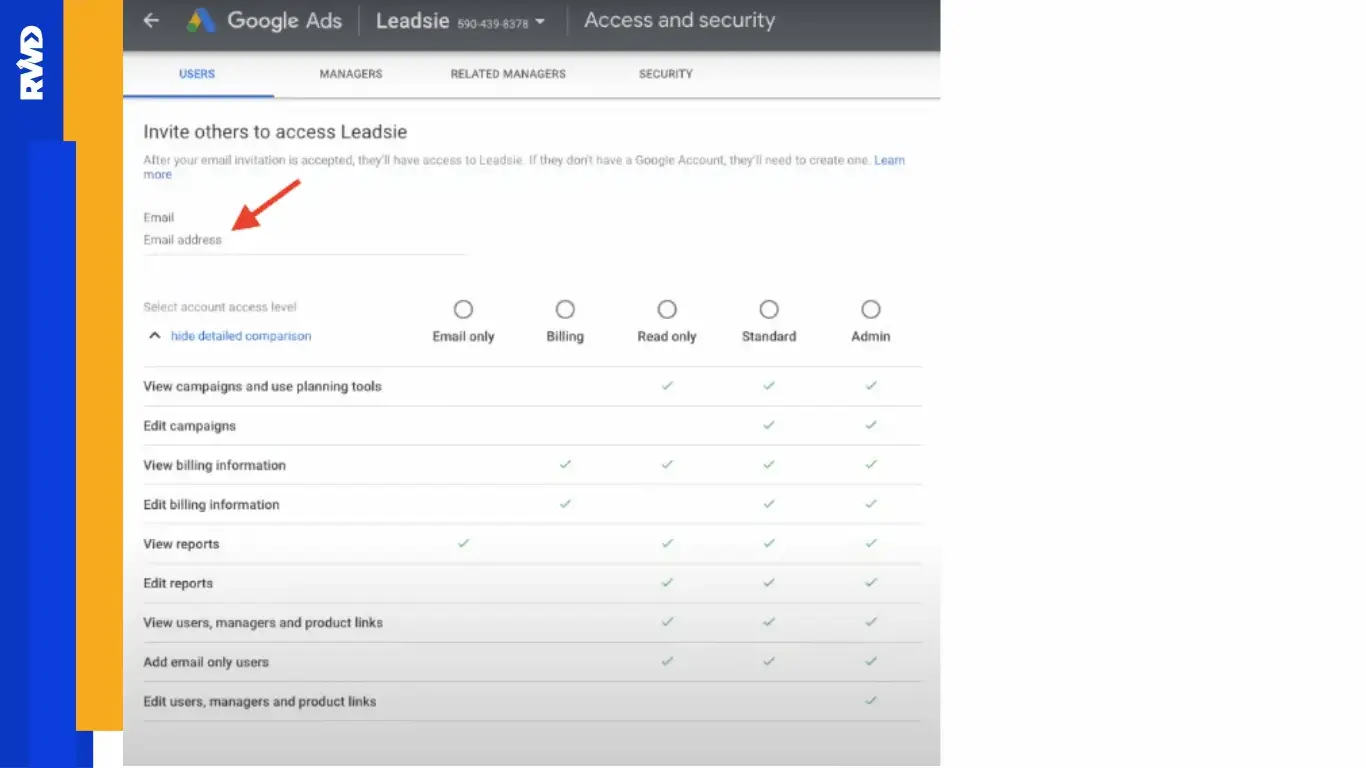
This is the most important step, as you decide exactly what the new user can and cannot do.
Note: This must be an email address linked to a Google Account.
Select the permissions you want to give them using the Google Ads Access Levels dropdown menu.
Read More: Search Engine Optimization Blog
Before you click "Send," you need to choose the right level. Granting too much access can risk your billing information or campaign settings, while granting too little might prevent them from doing their job.
Here are the four most common google ads access levels:
|
Access Level |
What They Can Do |
Who Is It Best For? |
|---|---|---|
|
Admin |
Full control over everything: can manage campaigns, view/edit billing details, and add/remove other users. |
The business owner or a highly trusted senior marketing manager. |
|
Standard |
Can create, edit, and optimize all campaigns, ads, and keywords. They cannot add users or change billing information. |
Agencies, freelancers, or your day-to-day campaign managers. |
|
Read-Only |
Can view all data, reports, and campaign settings, but cannot make any changes. |
Clients, executives, or financial analysts who only need to monitor performance. |
|
Billing |
Can view and edit payment methods, invoices, and budgets, but generally cannot see or manage campaigns. |
Your accounting or finance department. |
By following these simple steps, you have successfully learned how to give access to Google Ads account securely!
Yes, absolutely! This is one of the most common worries when you grant google ads access for the first time. If you accidentally give "Standard" access instead of "Read-Only," you can easily fix it. As long as you have the "Admin" role, just go back to Tools and Settings > Access and security, find the user, and click on their current access level to change it to a different role. No need to send a new invitation!
The most common mistake is that the email address you used in the invitation is not linked to a Google Account. The person you invite must use an email (like Gmail, or any email they have linked to Google services) to successfully complete the google ads login. If they use a different email, the invitation link won't work. The solution? Check that email address for typos, or ask them for the exact email they use for their Google services.
You are correct! If you cannot see the Tools and Settings (wrench icon) > Access and security option, it means your own user role is not an Admin. Only users with the highest level of Google Ads access levels (Admin) can invite or change other users. You will need to contact the person who originally set up the account (the primary Admin) and ask them to upgrade your access level first.
This is a crucial security question! If you give someone the Standard access level, they can manage, create, and edit all your campaigns, ads, and reports, which is great for a campaign manager. However, they cannot see, edit, or remove your payment methods or change your billing address. Only the "Admin" or the special "Billing" Google Ads access levels can view or change financial information, keeping your payments safe while they work on the ads.
When you grant google ads access to an agency's Manager Account, you do not lose ownership or your original Admin rights! Your individual account remains the "owner." Linking simply gives the agency manager certain permissions (usually equivalent to Admin or Standard access) to manage your campaigns. You can unlink or remove their access at any time through the Access and security tab, meaning you always maintain ultimate control over your Google Ads grant access.
Mastering how to grant Google Ads access is your first critical step toward running effective online campaigns, as it allows you to safely collaborate with experts. You've learned the importance of using appropriate Google Ads access levels to protect your financial data while giving campaign managers the freedom they need.
Remember: Running successful Google Ads campaigns requires more than just knowing how to give access to Google Ads account; it demands constant monitoring, strategic testing, and advanced expertise.
If you are serious about maximizing your ad spend, partnering with a specialized agency is the best way to leverage those google ads grant access permissions. We highly recommend exploring the services of Raadwindeal (RWD). RWD is a Toronto-based marketing agency that specializes in delivering high-performing paid ads solutions. By granting RWD secure access to your account, you can transfer the heavy lifting of campaign optimization to experts, ensuring your budget is spent wisely and your campaigns are managed by professionals focused solely on your success.
Take action today to secure your account and elevate your advertising strategy!