If Google can't find your sitemap, it can still crawl your site, but it will do so slower and less predictably. Submitting your sitemap in Google Search Console (GSC) gives Google a direct map of every page you want indexed, and it is one of the fastest ways to speed up how quickly new or updated content gets discovered.

This guide walks through the exact steps to submit a sitemap, why it sometimes fails, and how to fix the most common errors business owners run into.

What a Sitemap Actually Does

A sitemap is a file, usually in XML format, that lists the URLs on your site you want search engines to crawl and index. Google supports three sitemap formats: XML, RSS/Atom, and plain text, with XML being the most flexible because it can include extra details like image, video, and multilingual page data.

Submitting a sitemap does not force Google to index every page on it. Google has been clear that a sitemap submission is a hint, not a directive; it improves the odds of discovery but does not guarantee crawling or ranking. What it reliably does is give Google a starting point, which matters most for larger sites, newly launched sites, or sites with pages that are hard to reach through internal links alone.

If you are still getting familiar with the platform overall, our beginner's guide to Google Search Console covers the full setup process, from verifying your property to understanding the reports available.

How to Submit a Sitemap in Google Search Console

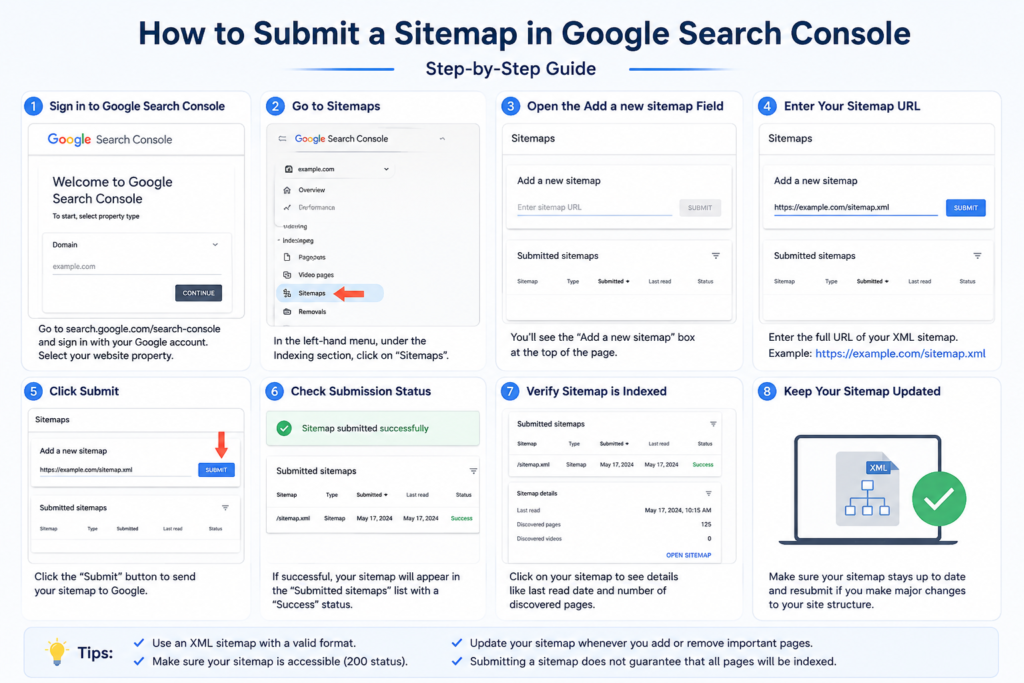
Here is the direct process, based on Google's own Search Console documentation:

  1. Sign in to Search Console at search.google.com/search-console using the Google account tied to your verified property.

  2. Select the correct property from the dropdown at the top left. If you manage multiple sites, double-check you are on the right one before submitting.

  3. Open the Sitemaps report in the left sidebar under the Indexing section.

  4. Enter your sitemap URL in the "Add a new sitemap" field. If you're on a domain property, type the full path after the domain, such as sitemap.xml or sitemap_index.xml.

  5. Click Submit. GSC will confirm the submission and, shortly after, show whether the sitemap was read successfully.

Most WordPress sites using an SEO plugin generate a sitemap automatically. Rank Math, Yoast, and All in One SEO typically place it at /sitemap_index.xml or /sitemap.xml. If you're unsure of your sitemap's exact URL, check your plugin's SEO settings before submitting.

How to Submit Sitemap in Google Search Console

Finding Your Sitemap URL

Before you can submit anything, confirm the sitemap actually exists and loads correctly. Type your domain followed by the likely sitemap path directly into a browser, for example yourdomain.com/sitemap.xml or yourdomain.com/sitemap_index.xml. If the file opens and shows a structured list of URLs, it's ready to submit.

Shopify and Squarespace sites almost always use /sitemap.xml by default. WordPress sites vary by plugin, so it's worth checking rather than assuming.

Common Mistakes That Cause Submission Failures

Submitting a relative URL instead of an absolute one. Google requires fully-qualified URLs inside the sitemap itself, meaning each entry should read as https://www.example.com/page rather than /page. If your sitemap generator outputs relative paths, Google may fail to crawl the listed pages even if the sitemap file itself is accepted.

Sitemap hosted outside the property's domain. You can only submit a sitemap hosted on the same site as the verified property. If your sitemap lives on a subdomain or third-party host that doesn't match your verified property, GSC will reject it.

Incorrect file encoding. Sitemaps must be UTF-8 encoded. Files saved with the wrong line-feed format (Windows-style CRLF instead of Unix LF, for instance) have caused read failures for some site owners.

Exceeding size limits. A single sitemap file is capped at 50MB uncompressed or 50,000 URLs. Larger sites need to split content into multiple sitemap files, tied together with a sitemap index file that you submit instead.

Submitting the wrong sitemap after a redesign. If you've recently changed CMS platforms or SEO plugins, your old sitemap URL may still be listed in GSC while your site now generates a new one at a different path. Remove the outdated entry and resubmit the current one.

Fixing "Sitemap Not Detected" or Processing Errors

When GSC reports a sitemap could not be read, work through these checks in order:

  • Open the sitemap URL directly in a browser. If it doesn't load, throws a 404, or shows a blank page, the problem is on your server or CMS, not in Search Console.

  • Validate the XML structure. A single unescaped character or malformed tag can break the entire file. Paste the sitemap content into a google sitemap validator or any XML validator to catch syntax errors quickly.

  • Check robots.txt isn't blocking it. If your robots.txt file disallows the sitemap's path, Google won't be able to fetch it even after submission.

  • Confirm you removed old, invalid sitemaps first. Multiple conflicting sitemap entries in GSC can create confusion in reporting even when the current one is fine.

  • Give it time. Google doesn't always process a sitemap instantly. For larger sites, it can take a few days for the status to update from "Pending" to "Success".

It's worth noting that "No referring sitemaps detected" on a specific page in the URL Inspection tool is a different, usually harmless, message. It simply means Google discovered that particular page through a method other than your sitemap, such as an internal link. That's not necessarily an error, and it doesn't require action unless the page also fails to get indexed at all.aubreyyung+1

Should You Submit Individual Sitemaps or a Sitemap Index?

If your CMS generates multiple sitemap files, such as separate files for pages, posts, and categories, you generally only need to submit the sitemap index file that ties them together. Submitting the individual sub-sitemaps as well isn't harmful, but it's not necessary since the index file already references them.

The one exception: if you want to track performance data separately for different sections of a large site, submitting individual sitemaps alongside the index can help you isolate crawl issues to a specific content type.

When to Get Professional Help

For a five-page business website, submitting a sitemap is usually a five-minute task. It becomes more complicated when:

  • Your site has thousands of URLs across multiple languages or locations

  • You've migrated platforms and old URLs conflict with new ones in GSC's index

  • Your sitemap validates fine, but pages still aren't getting indexed weeks later

  • You're managing multiple business locations, each needing its own crawl and indexing strategy

These situations usually point to a deeper technical SEO issue rather than a simple submission error, and they're where working with someone who audits sites regularly saves time.

How Raadwindeal Can Help

At Raadwindeal, we handle the technical side of SEO for small and medium-sized businesses across Toronto and the GTA, including sitemap setup, indexing troubleshooting, and the broader on-page and technical work that determines whether your pages actually get found. Our SEO services cover this kind of technical foundation alongside content and ranking strategy, so sitemap issues get resolved as part of a complete plan rather than a one-off fix.

If you've submitted your sitemap and pages still aren't showing up in search after a reasonable wait, that's usually a sign of a larger indexing or crawl budget issue worth investigating properly.

Get Your Sitemap Working Properly

If your sitemap keeps failing to submit or your pages aren't getting indexed, contact Raadwindeal for a technical review. We'll check your sitemap, robots.txt, and crawl settings, and tell you exactly what's blocking Google from seeing your site.

FAQs

Do I need to resubmit my sitemap every time I publish a new page?

No. Once a sitemap is submitted and Google is reading it successfully, most CMS platforms and SEO plugins update the sitemap file automatically whenever you publish new content. Google recrawls submitted sitemaps periodically on its own schedule, so manual resubmission is only needed if you've changed the sitemap's URL or structure.

Can I submit more than one sitemap to the same property?

Yes. You can submit multiple sitemaps or sitemap index files to a single property, and Google will process each one separately. This is useful if you want to track crawl performance for different sections of your site, such as blog posts versus service pages, individually in the Sitemaps report.developers.google


Why does my sitemap show "Success" but my pages still aren't indexed?

A successful sitemap read only confirms Google could access and parse the file; it does not guarantee indexing. Pages can be excluded from the index for reasons unrelated to the sitemap, such as thin content, noindex tags, duplicate content, or low perceived quality. Check the URL Inspection tool for the specific reason a page was excluded.

Does submitting a sitemap help my rankings?

Not directly. A sitemap affects discovery and crawling, not ranking. It helps Google find and index your pages faster, but where those pages rank still depends on content quality, relevance, technical performance, and backlinks, factors covered in on-page and off-page SEO work.


How often does Google recrawl a submitted sitemap?

There's no fixed schedule Google publishes publicly. In practice, sitemaps for actively updated sites tend to get recrawled more frequently than static ones, since Google's crawl frequency is influenced by how often your site's content actually changes. If you want Google to notice a specific new or updated page faster, the URL Inspection tool's "Request Indexing" feature is a more direct option than waiting on sitemap recrawl timing.


Leave a Reply

Your email address will not be published. Required fields are marked *

Are you human? Please solve:Captcha