Table of Contents
ToggleGoogle Search Console is like a direct communication channel between you and Google. Once you learn how to work with Google Search Console, you'll understand which keywords bring people to your site, how your pages appear in search results, and what technical issues might be holding you back.
What Is Google Search Console and Why You Need It
Google Search Console is like a direct communication channel between you and Google. It tells you which keywords bring people to your site, how your pages appear in search results, and what technical issues might be holding you back.
Here's what makes GSC essential for small business owners and marketers in Canada:
See exactly which search terms drive traffic to your site
Identify pages that rank well (and those that don't)
Find and fix technical problems that hurt your SEO
Submit new pages to Google for faster indexing
Track your website's search performance over time
Whether you run a local Toronto bakery or a Vancouver consulting firm, knowing how to work with Google Search Console gives you insights that paid tools charge hundreds of dollars for—completely free.
How to Set Up Google Search Console (Step by Step)
Before you can analyze website performance in GSC, you need to verify ownership of your site.
Step 1: Create Your Account
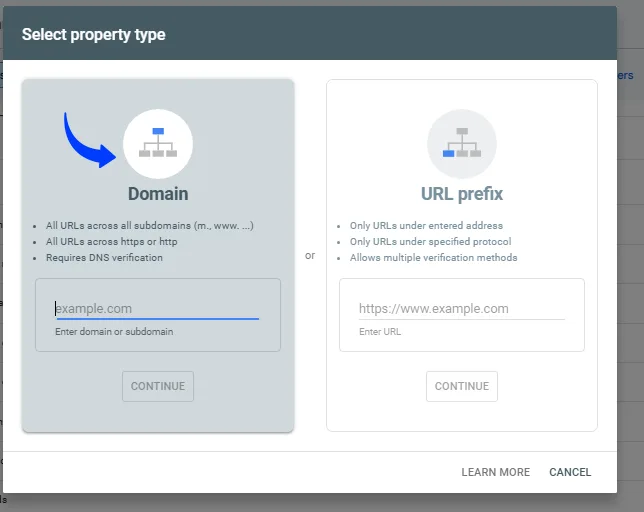
Go to search.google.com/search-console and sign in with your Google account. Click "Add Property" and enter your website URL. Choose between domain property (covers all subdomains and protocols) or URL prefix (specific version only). For most beginners, URL prefix is simpler.
Step 2: Verify Your Website
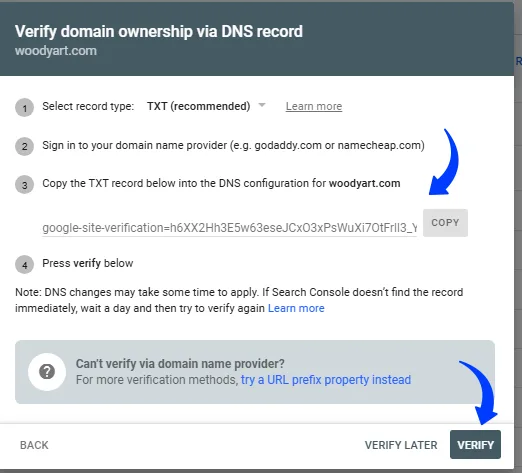
Google offers several verification methods. The easiest for beginners is the HTML tag method. Copy the meta tag Google provides, paste it into your website's header section (between the <head> tags), and click "Verify." If you use WordPress, plugins like Yoast SEO or Rank Math have dedicated fields for this tag.
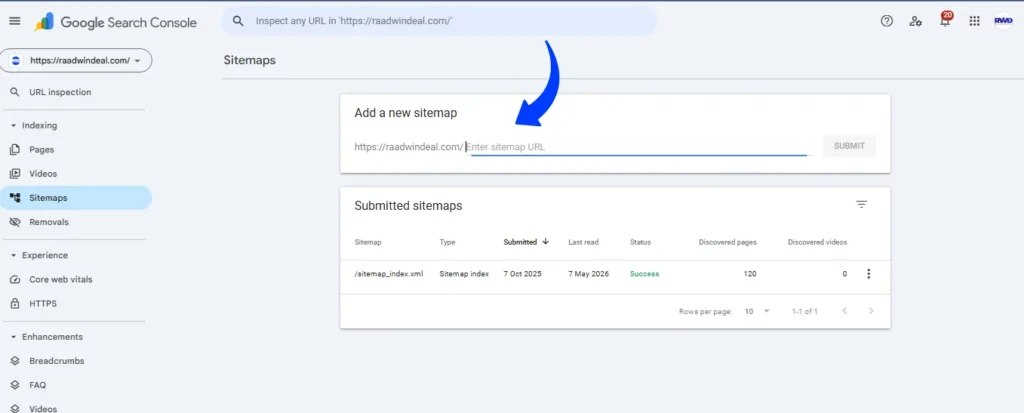
Step 3: Submit Your Sitemap
Google offers several verification methods. The easiest for beginners is the HTML tag method. Copy the meta tag Google provides, paste it into your website's header section (between the <head> tags), and click "Verify." If you use WordPress, plugins like Yoast SEO or Rank Math have dedicated fields for this tag.
How to Check Keywords in Google Search Console
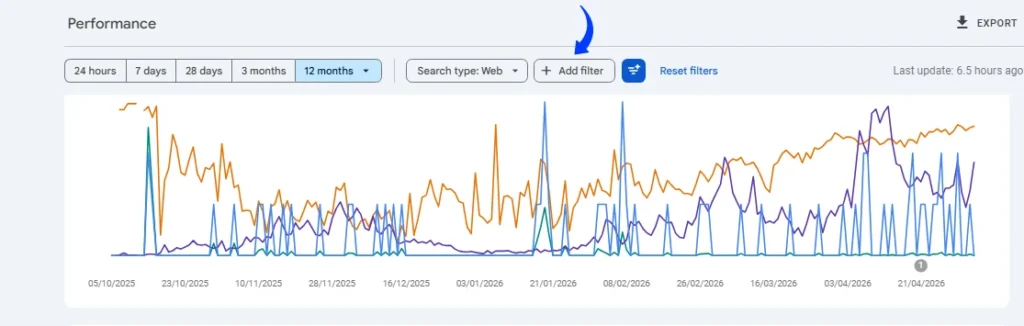
One of the most valuable google search console features explained here is the Performance report, which shows you exactly which keywords bring visitors.
Finding Your Top Keywords
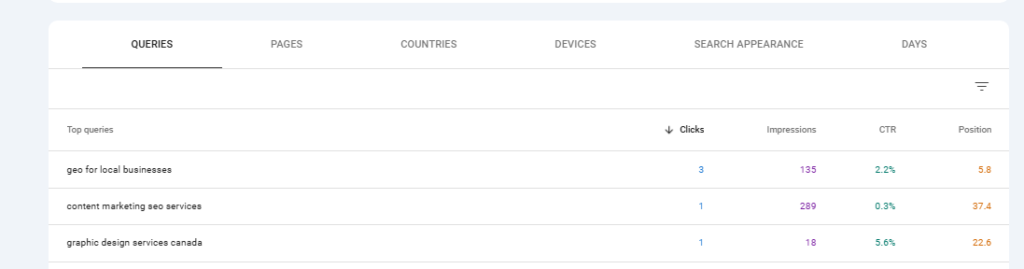
Click "Performance" in the left sidebar, then select the "Queries" tab. You'll see a list of search terms people used before clicking to your site. Pay attention to four key metrics:
Clicks: How many people clicked your link
Impressions: How often your page appeared in search results
CTR (click-through rate): Percentage of people who saw your link and clicked
Average Position: Where your page typically ranks for that keyword
Using Keyword Data Strategically
Look for keywords where you rank on page 2 (positions 11-20). These are your quick wins. Create better content around these terms, add internal links pointing to those pages, and you can often jump to page 1 within weeks.
Also identify high-impression, low-click keywords. These show that many people see your page but don't click. The problem is usually your title or meta description. Make them more compelling to improve your CTR.
Read More: Content Centric SEO
How to Analyze Website Performance in GSC
Beyond keywords, the Performance report reveals patterns about your traffic.
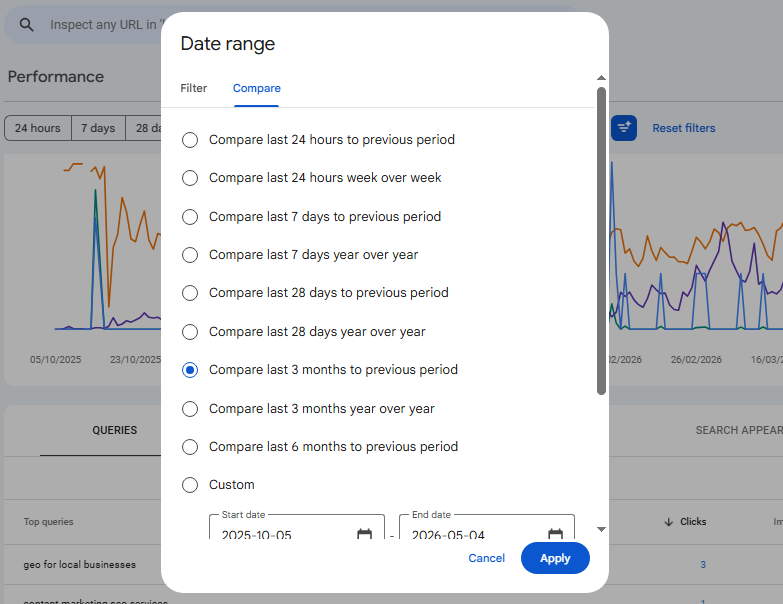
Compare Date Ranges
Click "Compare" at the top and select two time periods (for example, last 3 months vs. previous 3 months). This shows whether your SEO efforts are working. Green arrows mean improvement; red means decline.
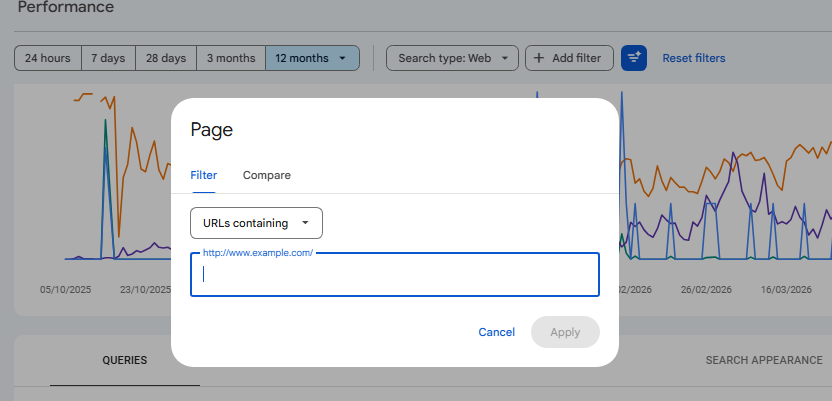
Filter by Page
Switch from "Queries" to "Pages" to see which individual pages get the most traffic. Your top performers deserve more internal links from other pages. Your lowest performers might need content updates or better optimization.
Read More: Marketing Plan Example
Filter by Country
If you're a Canadian business targeting local customers, filter by country to see how much traffic comes from Canada specifically. This helps you understand if your local SEO strategy works.
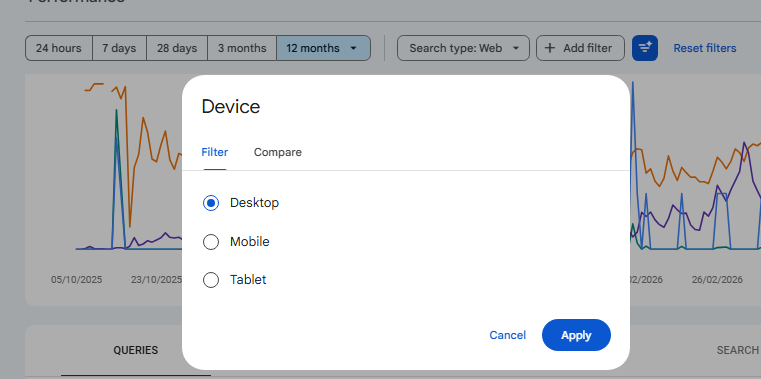
Check Mobile vs. Desktop
Under "Performance," click the "Device" filter. In Canada, over 60% of searches happen on mobile. If your mobile traffic lags behind desktop, your site might have mobile usability issues.
Read More: AI Search Optimization
How to Fix Indexing Issues in Google Search Console
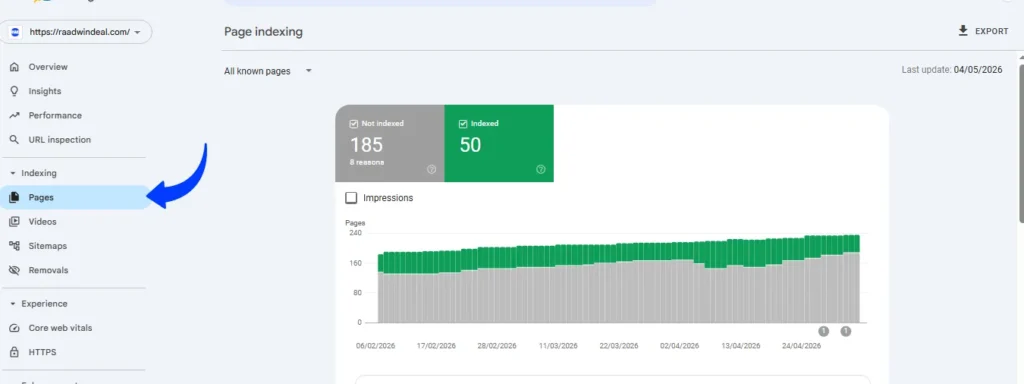
The Coverage report (now called "Page Indexing" in newer GSC versions) shows which pages Google successfully added to its search index and which ones it ignored.
Understanding Index Status
Click "Pages" in the left menu. You'll see pages grouped into categories:
Indexed: Successfully added to Google (good)
Not indexed: Google found the page but chose not to include it (needs investigation)
Error: Technical problems prevented indexing (must fix immediately)
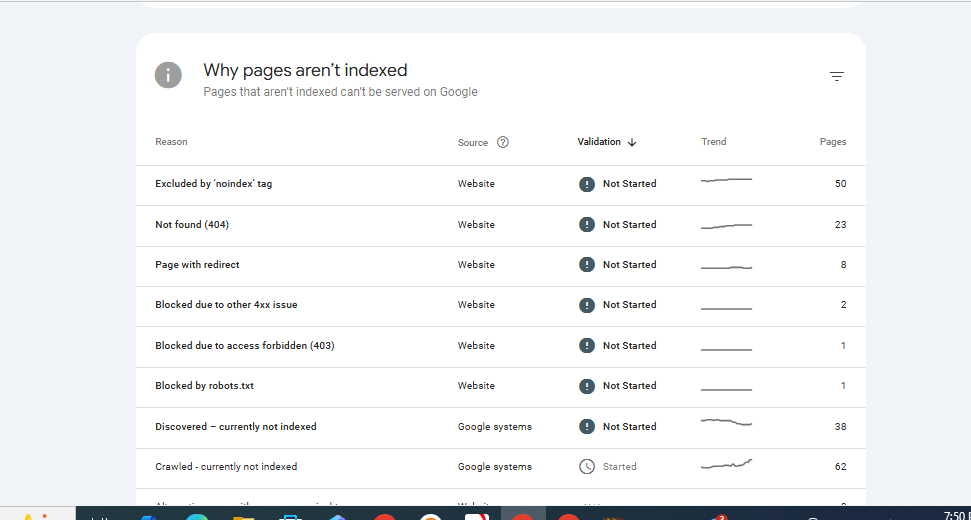
Common Indexing Problems and Fixes
"Crawled - currently not indexed": Google visited the page but didn't think it was valuable enough to index. Improve the content quality, add more depth, and include relevant keywords naturally.
"Discovered - currently not indexed": Google knows the page exists but hasn't crawled it yet. Add internal links from your important pages to help Google find it faster.
"Excluded by 'noindex' tag": You (or your website platform) told Google not to index this page. If it should be indexed, remove the noindex tag from your page's header.
"404 error": The page doesn't exist anymore. Either restore it or set up a 301 redirect to a relevant page so visitors and Google find something useful.
Requesting Indexing for New Pages
When you publish new content, use the URL Inspection tool (top of GSC) to ask Google to crawl it immediately. Paste your URL, click "Request Indexing," and Google typically checks it within a few days instead of waiting weeks.
How to Improve Ranking Using Google Search Console
GSC doesn't directly change your rankings, but the data inside helps you make smarter SEO decisions.
Optimize Underperforming Pages
Find pages ranking between positions 5-15 for valuable keywords. These are your biggest opportunities. Update the content with fresh information, add images or videos, improve internal linking, and ensure the page answers the search intent completely.
Fix Pages with High Impressions but Low Clicks
If your page shows up often in search but people don't click, your title tag or meta description isn't compelling. Rewrite them to include the keyword naturally while highlighting the unique benefit your page offers.
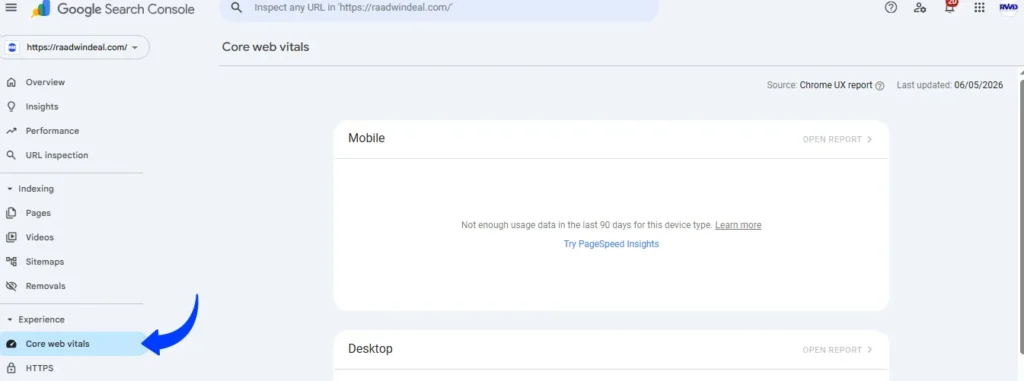
Improve Core Web Vitals
Under "Experience" in the left menu, check "Core Web Vitals." Google uses page speed and user experience as ranking factors. If you see "Poor" URLs, work on improving loading speed, reducing layout shifts, and making your site more responsive.
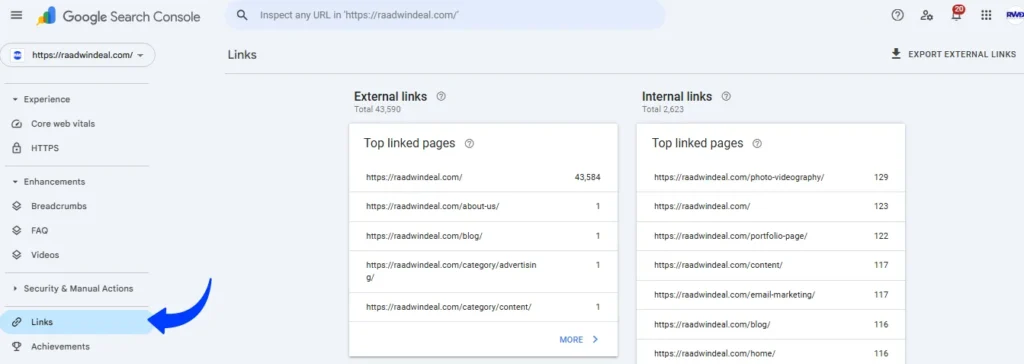
Build Internal Links
Use the "Links" report to see which pages have the most internal links. Your most important pages should have strong internal linking. If a page you want to rank better has few internal links, add contextual links from related articles.
How to Track Website Traffic in Google Search Console
While tools like Google Analytics show overall traffic, GSC specifically tracks visitors who found you through Google Search.
Set Up Regular Monitoring
Check your Performance report weekly. Look for sudden drops in clicks or impressions—these often signal technical problems or Google algorithm updates affecting your site.
Export Data for Deeper Analysis
Click the export button (top right of Performance report) to download your data as a spreadsheet. This lets you analyze trends over longer periods or combine GSC data with other analytics tools.
Track Specific Landing Pages
Filter by individual pages to see which content attracts the most search traffic. Double down on topics that perform well by creating related content and building topic clusters.
Google Search Console Tips for Small Business Owners
Running a small business in Canada means you need practical, time-efficient strategies. Here are actionable google search console tips:
Weekly 15-Minute Check-In
Every Monday, spend 15 minutes reviewing:
Any new coverage errors (fix immediately)
Top 5 queries from last week (note opportunities)
Click trends (watch for sudden drops)
Monthly Deep Dive
Once a month, dedicate an hour to:
Compare performance to previous month
Identify 2-3 keywords ranking on page 2 and optimize those pages
Check Core Web Vitals and address any issues
Review mobile usability problems
Use Filters to Focus on What Matters
If you serve a specific region (like Ontario or British Columbia), filter your Performance data by location. This shows whether your local SEO efforts reach your target audience.
SEO Tools for Website Optimization Beyond GSC
While this guide focuses on how to use google search console for beginners, combining GSC with other SEO tools creates a complete optimization strategy. Google Analytics shows user behavior after they reach your site. Free keyword research tools help you find new terms to target. Page speed tools like Google PageSpeed Insights complement the Core Web Vitals data in GSC.
For small businesses that lack time or expertise, partnering with experts makes sense. Raadwindeal is a digital marketing agency that helps Canadian businesses grow their online presence. Beyond SEO and GEO (geographical and AI optimization), Raadwindeal offers paid ads and email marketing, content marketing, web design and branding, social media management, and videography and photography—everything you need to be seen and drive real results.
Common Mistakes to Avoid
Learning how to use google search console step by step means avoiding these beginner errors:
Ignoring mobile usability issues when most Canadian users search on phones
Not submitting sitemaps, which delays how quickly Google finds your new content
Focusing only on high-volume keywords while missing easier, lower-competition opportunities
Neglecting to fix coverage errors that prevent pages from ranking
Checking GSC once and never returning (consistency matters)
FAQs
How long does it take for changes to show in Google Search Console?
Google typically updates GSC data with a 1-2 day delay, meaning today's performance appears tomorrow or the day after. However, if you make SEO changes to your site (like updating titles or improving content), it takes 2-4 weeks before you see meaningful ranking changes reflected in GSC. For new pages, request indexing through the URL Inspection tool to speed up discovery.
Can I use Google Search Console for competitor research?
No, GSC only shows data for websites you own and verify. You cannot see competitor keywords, rankings, or traffic through GSC. For competitor analysis, you need third-party tools like SEMrush or Ahrefs. However, GSC's "Queries" report sometimes reveals keywords your competitors rank for if users see both your site and theirs in search results.
Why do my Google Analytics numbers not match Google Search Console?
This is normal and happens because they measure different things. GSC tracks only visitors who clicked from Google Search results, while Analytics tracks all visitors (social media, direct, referrals, etc.). Additionally, GSC filters out bot traffic and uses different counting methods. Focus on trends rather than exact numbers—if both show upward or downward movement, that's what matters.
How often should I submit my sitemap to Google Search Console?
You only need to submit your sitemap once. After initial submission, Google automatically rechecks it periodically for updates. If you make major structural changes to your site or add many new pages at once, you can resubmit manually, but WordPress SEO plugins handle this automatically. Check the "Sitemaps" section monthly to ensure Google successfully processed your latest version.
What should I do if Google Search Console shows zero impressions or clicks?
First, verify you submitted your sitemap and requested indexing for key pages. Check the "Pages" report for coverage errors preventing indexing. If pages are indexed but still show zero impressions, your content likely doesn't match what people search for—do keyword research to find terms with actual search volume, then optimize your content accordingly. New sites can take 3-6 months to gain meaningful traction in search results.