how to give google search console access? If you’re trying to give access to a digital agency or your freelancer, this article covered everything for for you. We’ll walk you through how to add user to google search console, remove users, and everything else you may need to know.

Types of Users and Roles

When we’re walking thorough google search console access levels, we mainly deal with two groups: domain and subdomains properties. Each property has at least one verified owner. As an owner, can add up to 100 users (non-owners) and even assign more owners if needed.

Here are the different roles:

  • Owner: An owner is the person who initially sets up the Google search console property, but additional owners can be added at any time. All owners have the same level of permissions.
  • Verified Owner: To add or remove a verified owner, you’ll need to make small changes to the website’s code to confirm that you have control over it.
  • Delegated owner: A delegated owner can be assigned at any time without needing verification through the website (no token required).
  • Users: A user can view data and take some actions, but they can’t add new users or assign admin roles.
  • Full Users: A Full user can not only view almost all property data but also has access to certain features, such as submitting a sitemap or managing some settings.
  • Restricted users: Restricted users can view only limited data, including parts of the performance reports, but not everything.
  • Associated users: An associated user can perform specific actions on your behalf without being able to access or view your search console data. For example, when you link Google Ads to your account and let someone manage it for you.

What Permissions Should I Assign to Somebody?

Google search console new owner should only be assigned to somebody you fully trust, such as your business partner, SEO manager, or content manager. Remember, owners have full control, including adding or removing users, requesting URLs removal, and even deleting the entire property.

As mentioned earlier, the digital agency you work with, or your, your teammates, or your freelancer can all be add as a user or full user, depending on their role.

 The marketing team, other freelancers, or content writers can be assigned as restricted users if they mainly need view-only access.


Important Tip: Owner roles should be reserved for key decision-makers. To make your search console account secure, it’s best to have only one or two owners. consider having just one or two owners.

How to Grant Access to Google Search Console?

If you want to add user to google search console, simply follow the screenshots and outlined we provided below. If you are not an owner, simply jump into the next section.


Step 1. click on the Google search console. If you’re not signed in to the account before, click on “New Google Search Console Login.” Afterwards, you’ll be redirected to the dashboards.


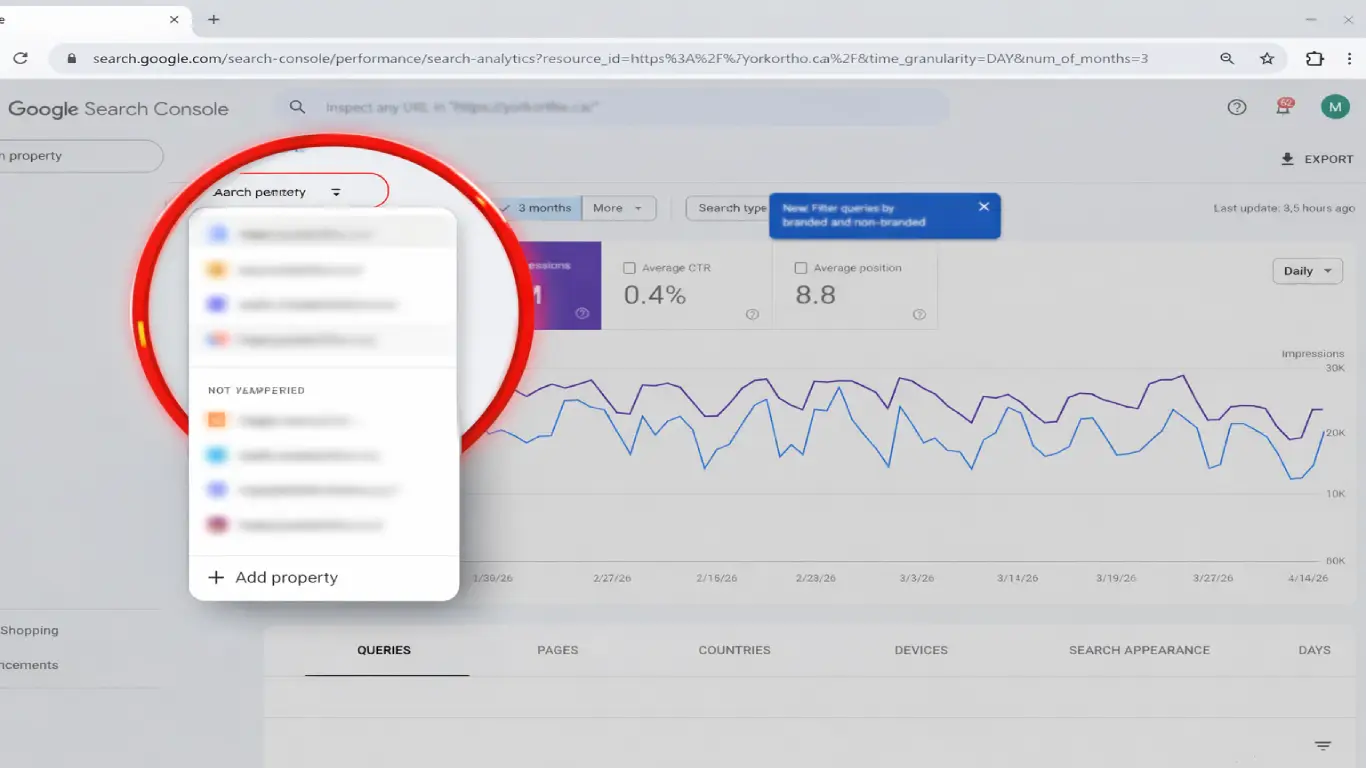
Step 2. If you handle multiple properties, check that you’re in the correct position. Need to change properties? On the left-hand menu, click on the name of the current property. This will expand the drop-down list. Select the property you want to add a user to.

How to Grant Access to Google Search Console?

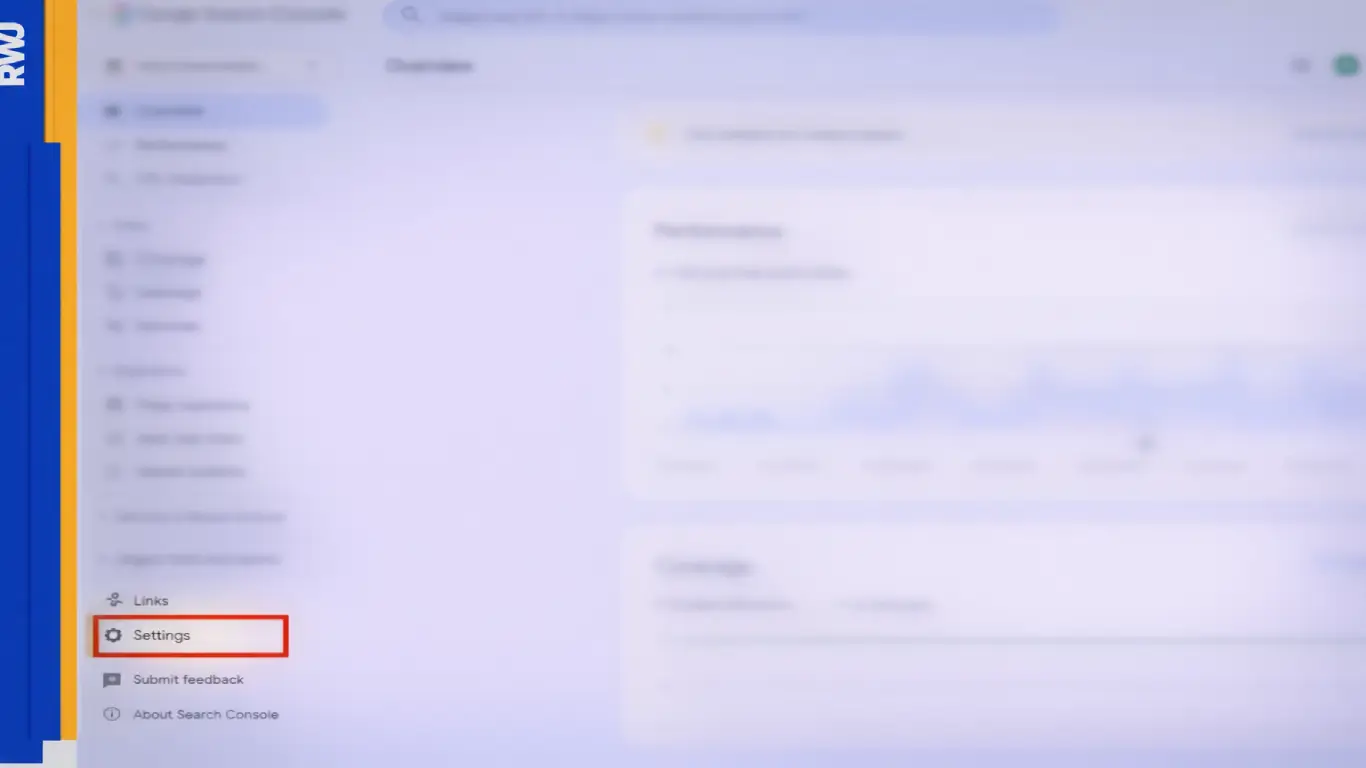
Step 3. Now, scroll down the left-side menu to find “Settings.” When you find it, click on it.

giving access to google search console

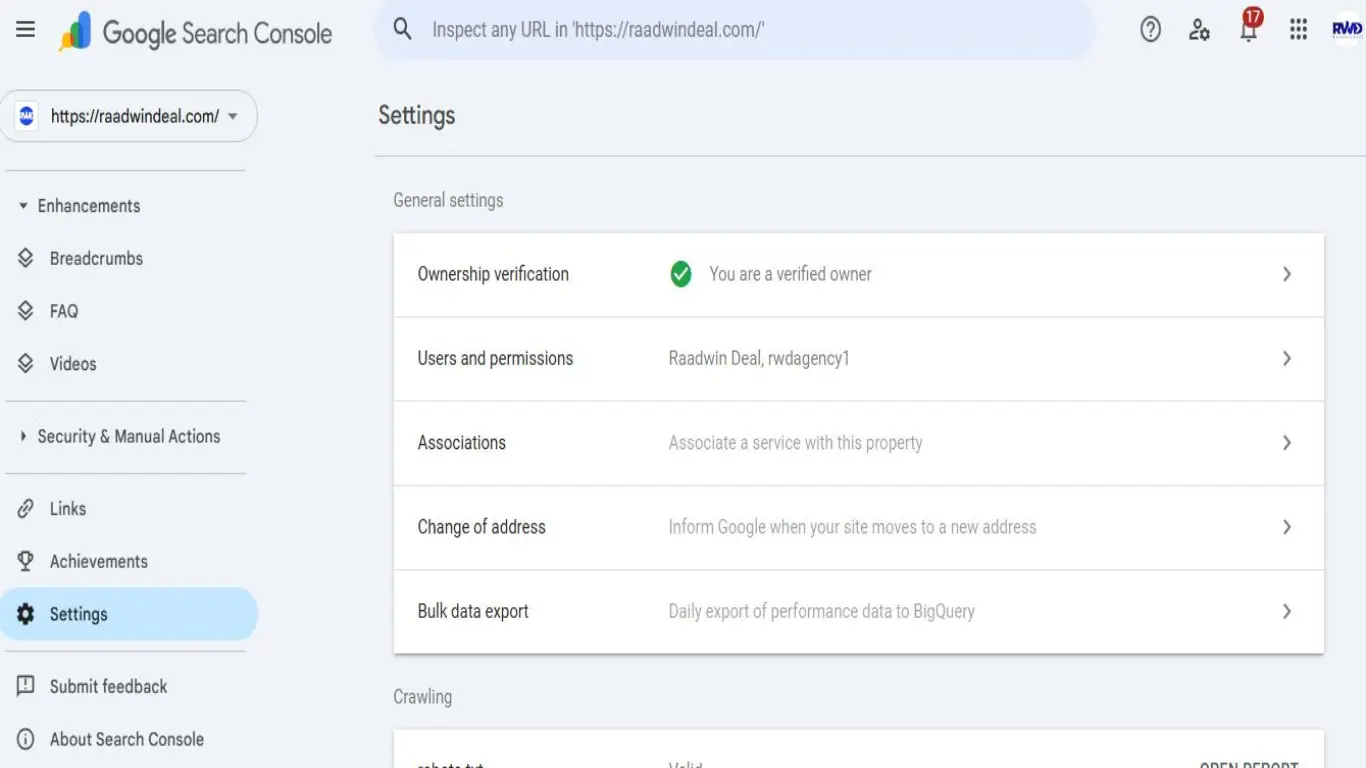
Step 4. Under general settings, click users and permission.

google search console access levels

Step 5. The Users and Permissions screen shows all current users and their access levels. Click the blue Add User button.


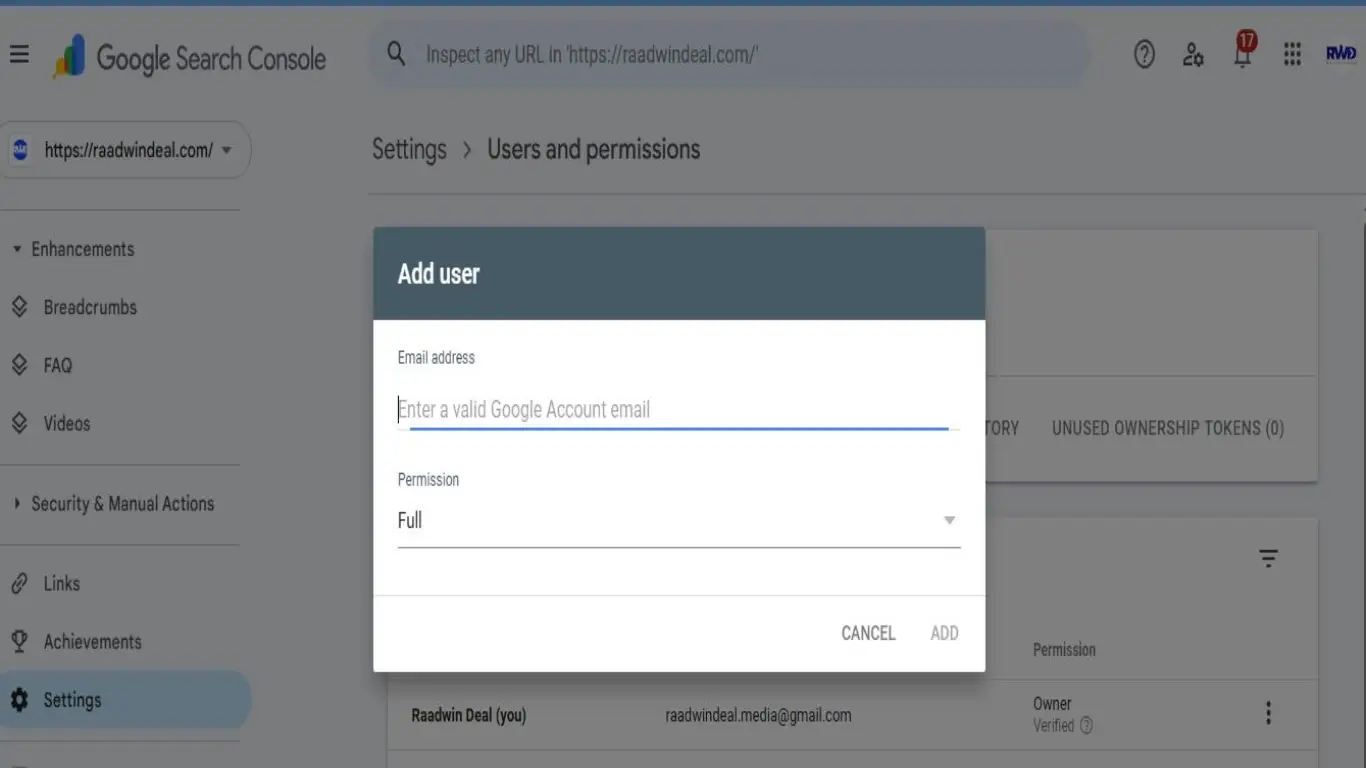
Step 6. A pop-up will appear. Enter the email address of the person you want to add. Then, choose their permission level (Owner, Full, or Restricted) based on their role within your website. Afterward, click Add.

add user to google search console

Read More: Content Centric SEO

Removing users or changing permissions

  1. Go to the property in Google Search Console.
  2. Go to Users and Permissions.
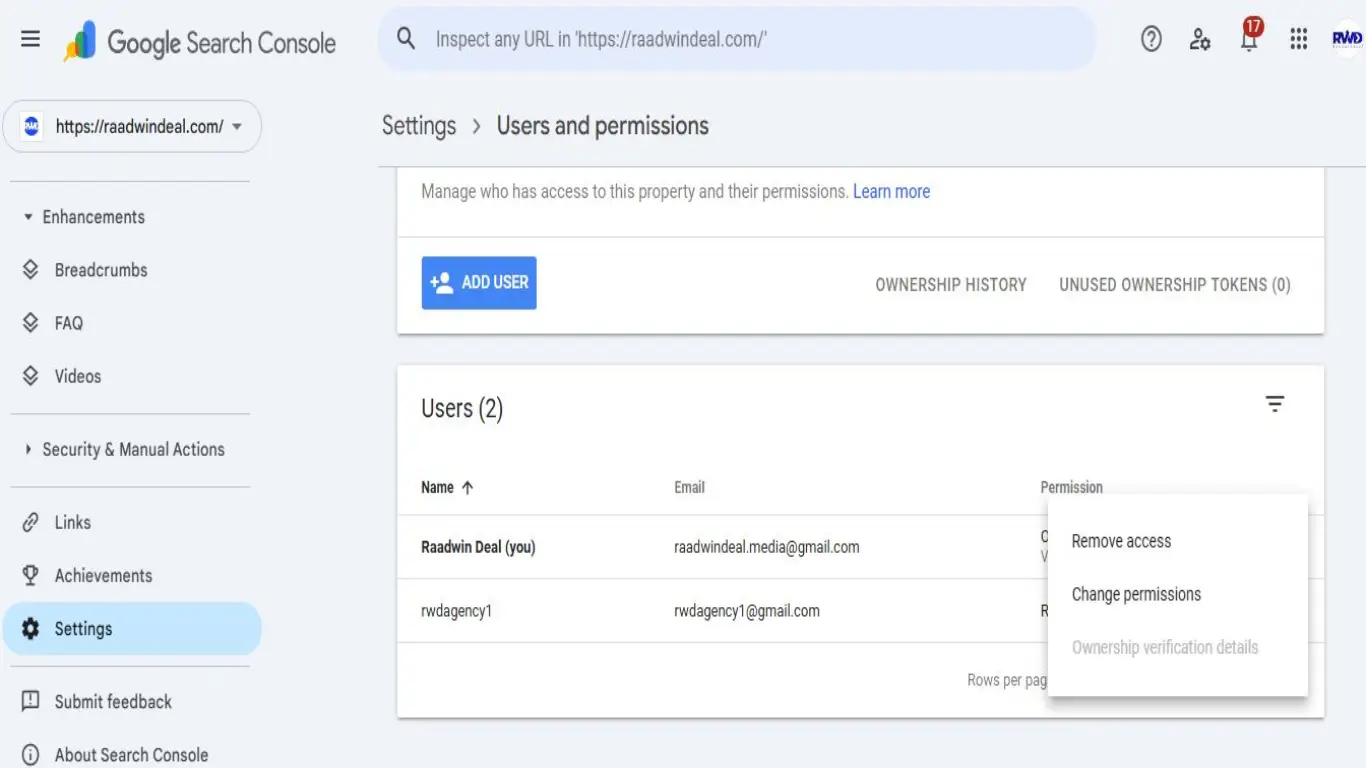
  3. Click the three-dot icon next to the user, then select Remove access.
  4. Then, click Remove User in the pop-up to confirm.
google search console access levels

Security tip: When removing an owner, you might see a pop-up list showing all the verifications associated with their access. They can use these verification methods to regain ownership.

Note: You can also check ownership tokens by clicking on Unused ownership tokens in the Users and Permissions tab.

Final Words

Understanding google search console access levels is important when you want to safely manage your website and collaborate with others. Whether you’re learning how to give google search console access, or simply trying to add user to google search console, always make sure you assign the right permissions based on each person’s role.

If you are working with a digital partner, agencies like RaadwinDeal agency can help you properly manage setup, access, and optimization of your Search Console account without risking your data security.

By using the correct roles and keeping only trusted people as owners, you can maintain full control of your website while still allowing your team or agency to work efficiently.